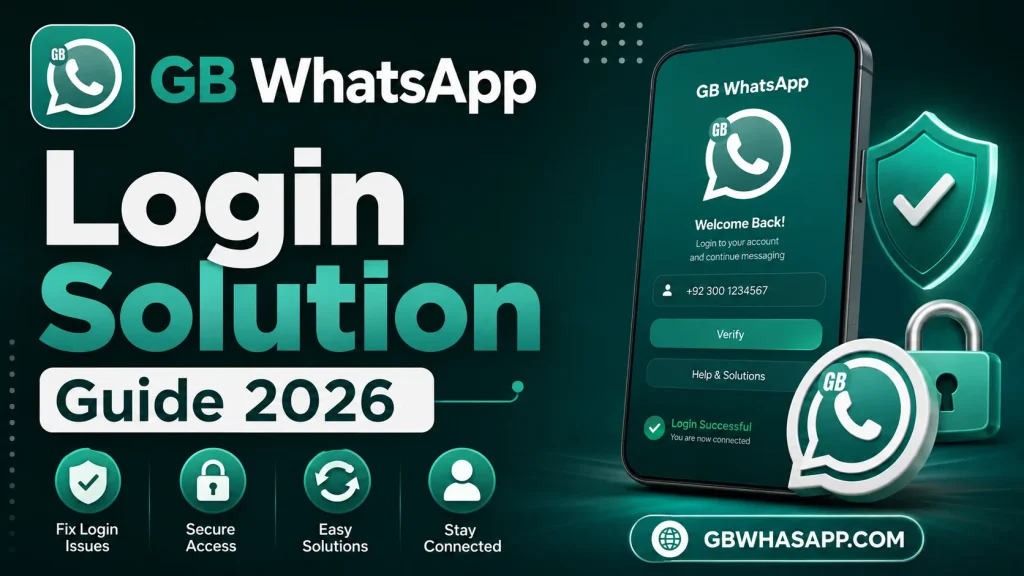
GB WhatsApp Login Solution Guide 2026
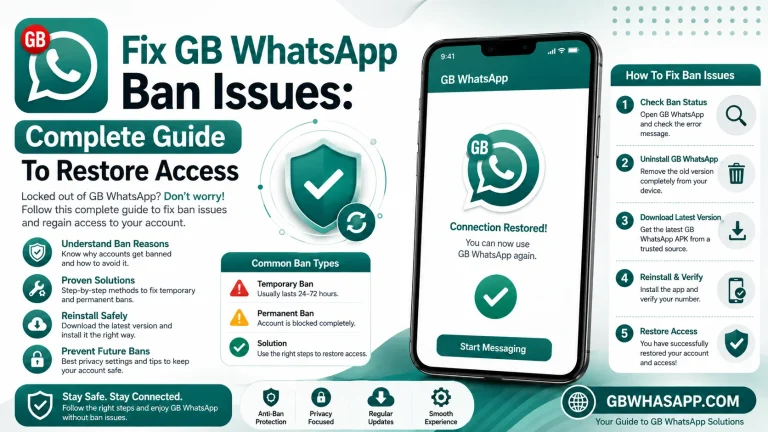
If you cannot log in to GB WhatsApp, the most common solutions are updating to the latest version, checking your internet connection, verifying your phone number correctly, clearing the app cache, and requesting a new verification code. Most login problems are caused by outdated APK versions, verification errors, or temporary compatibility issues.
Why GB WhatsApp Login Fails
Login problems usually happen because of:
- Outdated GB WhatsApp version
- Incorrect phone number
- Poor internet connection
- SMS verification code not received
- Corrupted app cache
- Temporary server or compatibility issues
How to Fix GB WhatsApp Login Issues
1. Update GB WhatsApp
Install the latest available version. Older versions may no longer work after WhatsApp protocol changes.
2. Check Your Internet
Use a stable Wi-Fi or mobile data connection and restart your network if needed.
3. Verify Your Phone Number
- Select the correct country code.
- Enter your mobile number correctly.
- Request a new verification code if the first one expires.
4. Clear Cache
Go to Settings > Apps > GB WhatsApp > Storage > Clear Cache, then reopen the app.
5. Restart Your Device
A simple restart can resolve temporary login and network problems.
6. Check SMS Permissions
Allow SMS and Phone permissions so the app can complete verification.
7. Reinstall the App
If login still fails:
- Back up your chats (if possible).
- Uninstall GB WhatsApp.
- Install the latest version.
- Verify your number again.
“You Need the Official WhatsApp to Log In”
Some users may see this message because WhatsApp actively detects unsupported third-party apps. Updating GB WhatsApp may help in some cases, but there is no guaranteed fix because support depends on changes made by the unofficial app’s developers and WhatsApp’s security systems.
Verification Code Not Received
If the OTP does not arrive:
- Confirm your phone number.
- Check your mobile signal.
- Wait a few minutes before requesting another code.
- Try voice verification if available.
Common Login Errors
| Problem | Solution |
|---|---|
| Verification failed | Check your phone number and request a new code. |
| App stuck on loading | Restart the app and clear the cache. |
| Login not working | Update to the latest GB WhatsApp version. |
| OTP not received | Check your network and try again later. |
| App crashes during login | Restart your phone or reinstall the app. |
Tips to Avoid Login Problems
- Keep GB WhatsApp updated.
- Use a stable internet connection.
- Enter the correct phone number.
- Avoid switching between multiple APK versions.
- Back up your chats regularly.
Frequently Asked Questions
Why can’t I log in to GB WhatsApp?
The most common reasons are an outdated version, verification issues, poor internet, or compatibility changes.
Does reinstalling GB WhatsApp fix login problems?
It often resolves corrupted app files, but always back up your chats first if possible.
Why am I not receiving the verification code?
Check your network, verify your phone number, and request a new code after waiting a few minutes.
Can using GB WhatsApp affect my account?
Yes. GB WhatsApp is an unofficial modification of WhatsApp and may stop working or trigger account restrictions because it is not supported by Meta.
Conclusion
Most GB WhatsApp login issues can be fixed by updating the app, checking your internet connection, verifying your phone number, and clearing the cache. If the problem continues, reinstalling the latest version may help. Because GB WhatsApp is an unofficial app, login compatibility can change over time as WhatsApp updates its security measures.